What is BlueStacks?
BlueStacks is the most popular Android emulator for PC and Mac users. You can use your computer like an Android phone with simple, easy-to-use operations, it allows you to access games and applications only available on Android devices. And with allowing the use of multiple accounts and synchronizing different accounts, you can easily plow multiple accounts at the same time to save you more time in plowing levels or items. Because of this, your computer will consume a lot of data, the cache will take up a lot of space on your computer.
To keep the space on your computer always in the best condition, Couponupto has listed 3 ways to clear cache on bluestacks. Please scroll down and read on.

3 Best Methods to Clear Cache on BlueStacks
Cache is a temporary data storage area of the device, which stores some temporary data. This temporary data helps us to access it faster next time.
Here are the 3 Best Methods to Clear Cache on BlueStacks that are most popular and easy to implement.
1. Clear cache of Google Play services
Google Play Services is a service package that includes various tools, tasks, and applications for the purpose of helping Android phones to function smoothly and at their best.
Since normally users will access the Google Play Store on BlueStacks to download their favorite games and applications, first to reduce the space please clear the Google Play cache. Here's how to clear the Google Play Services cache.
Step 1: First of all, open BlueStacks on your PC and click on the System Apps folder. Next, click Install.
Step 2: On the Settings app, click the Apps option.

Step 3: Next, find and click on Google Play Services. On the next screen, click on the storage option as shown below.
Step 4: On Google Play Services storage, click the Manage space button.
Step 5: On the next screen, click on the option Clear All Data

That is the last step. You should be able to clear Google Play Services cache and data on your BlueStacks emulator.
2. Clear Android cache data on BlueStacks
This is the well known method to clear cache on BlueStacks. This method will help you to clear the data and cache of the Settings app on BlueStacks. Follow the steps below.
Step 1: First, open BlueStacks on your PC and click on the System Applications folder. Next, click Install.
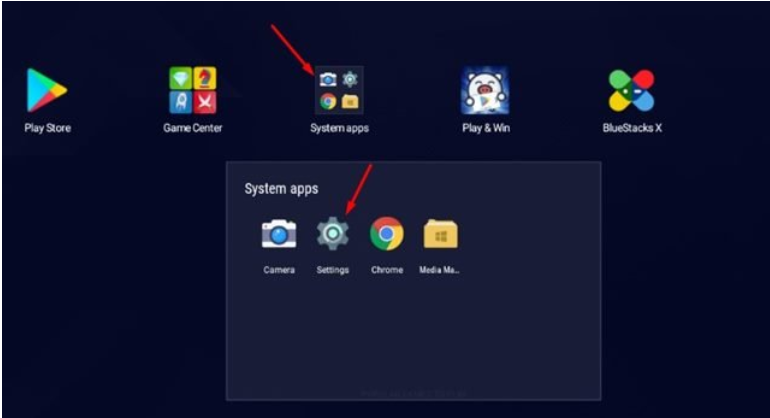
Step 2: On the Settings app, click the Storage option

Step 3: On the " internal shared storage" screen, scroll down and click on the Cached data option.

Step 4: On the confirmation prompt, click the Ok button.

It is done! You are done. This is another best method to clear cache on BlueStacks emulator for PC.
3. Disk Cleanup in BlueStacks
This is also a great way to free up space on your computer. BlueStacks also has Disk Cleanup utility that deletes application data and cache files and below couponupto will guide you through the steps to do it:
Step 1: First of all, open BlueStacks emulator on your PC and click on the small gear icon (Settings).

Step 2: On the Settings page, click on the User Data option
Step 3: Click Free up space in Disk Cleanup on the right side.

Step 4: On the confirmation prompt, click the Continue button.
So the final steps have been completed. Now BlueStack will shut down and clean up to free up some storage space.
Conclusion
The 3 ways to clear cache on BlueStacks are all very easy to do. You just need to follow our instructions to complete your purpose of freeing up space on Windows 11.
If you are using BlueStacks and have problems with the app, one thing you can try is clearing the cache. This can be done in two different ways: through the app itself or through the Android settings. Clearing cache can help fix problems like app crashes, crashes, or other problems. Hope you enjoyed the article and it helped you clear Cache On Bluestacks.
Hope you are successful!
FAQs:
How do I delete files from BlueStacks SD card?
Updated BlueStacks comes with Media Manager. It contains a App section which contains all the WhatApp media files. You can select with long press on any image and there is delete button to delete those files.
What is the storage of BlueStacks?
Currently BlueStacks is provided with a storage capacity limit of 64GB for virtual SD images /internal storage on the pc. As for today's Android smartphones, SD cards with capacities up to 512GB are accepted.
Where is BlueStacks app data stored?
Normally, the BlueStacks app's stored data will be in the location: C: ProgramDataBlueStacksUserData. However, information files in 'VDI' format will be stored in SharedFolder on Windows or Library/BlueStacks/Android on Mac (VirtualBox Drive Image).
:max_bytes(150000):strip_icc()/nyenails_social-8e958af5ea154ad994449cf769bb258b.jpg)


:max_bytes(150000):strip_icc()/citrus-and-fennel-chicken-with-olives-and-calabrian-chiles-FT-RECIPE0222-c1ef1d87fa514fa08e1616617cdab618.jpg)